What a note does
A note is a document that stays connected to the research it is built on. You add papers to it, cite them as you write, and PhysioKeys keeps the citation numbers and the list of references in order for you. A writing assistant inside the note can answer questions about those papers or draft text from them, and it works only from the papers you added.
That makes a note useful for the writing your work already involves:
- Coursework and essays, where every claim needs a source your marker can check.
- Clinical notes that record a treatment plan and its outcomes next to the evidence behind it.
- Literature reviews and research proposals that grow over weeks and gather dozens of papers.
- Study summaries and journal-club notes you want to find again months later.
Your notes belong to your account and are not shared with anyone.
From question to finished document
This is the whole journey a note is designed for. Each step has its own section below, and you can use as many or as few as you like: a note is just as good for a page of your own thinking as for a finished assignment.
- Start a note, on a clean page or from a template that gives it a structure.
- Search beside the note and add the papers you need, without leaving the page.
- Cite them as you write. The numbers and the references keep themselves in order as the note changes.
- Ask the assistant what the papers say, or have it draft a section from them for you to edit.
- Build a reference list in the style your course or journal asks for.
- Export the note to Word or PDF and hand it in.
Start a note
- Open Notebook from the sidebar.
- Select New note. A new Untitled note opens with a start panel.
- Select the title at the top of the page and give the note a name.
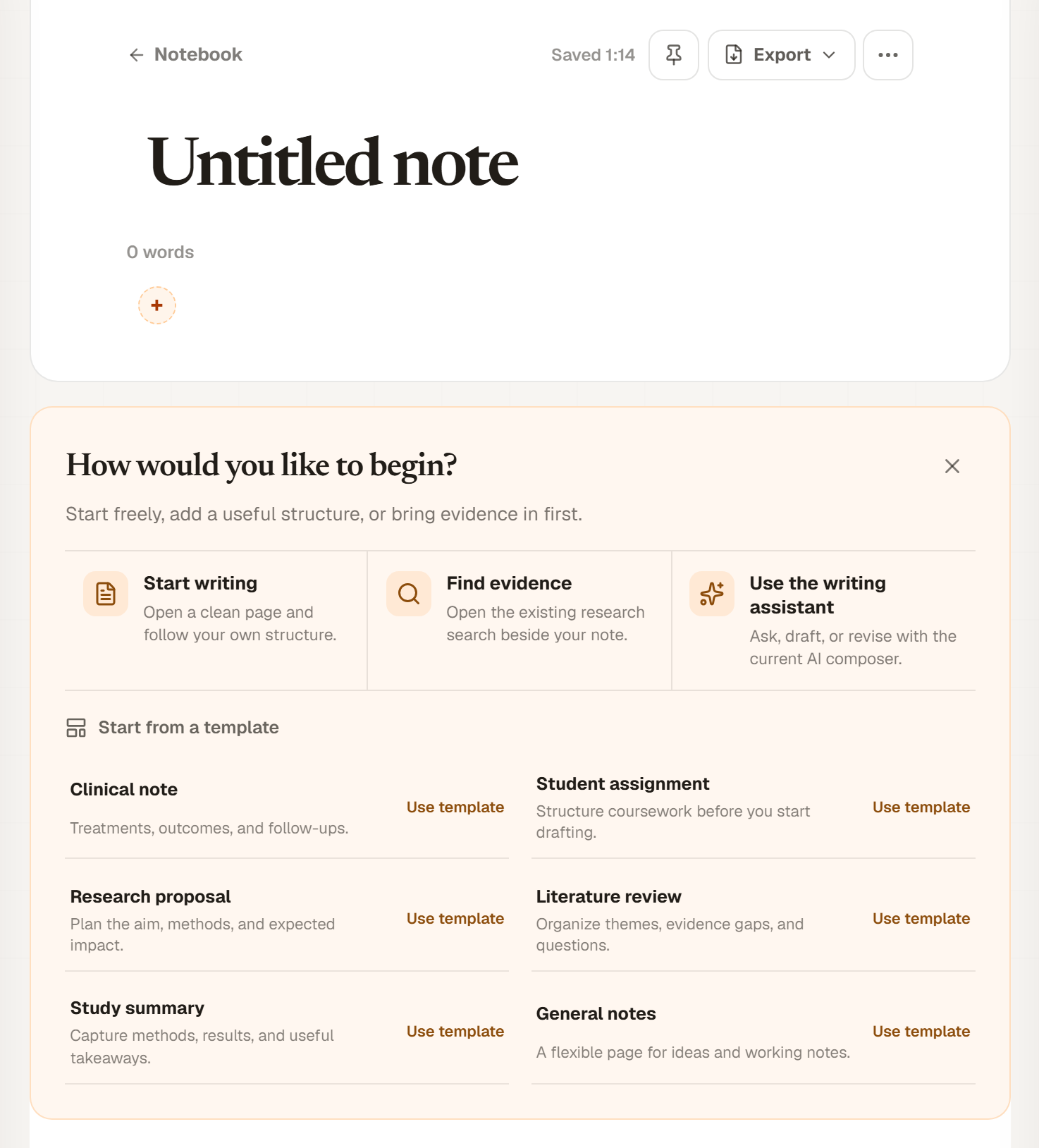
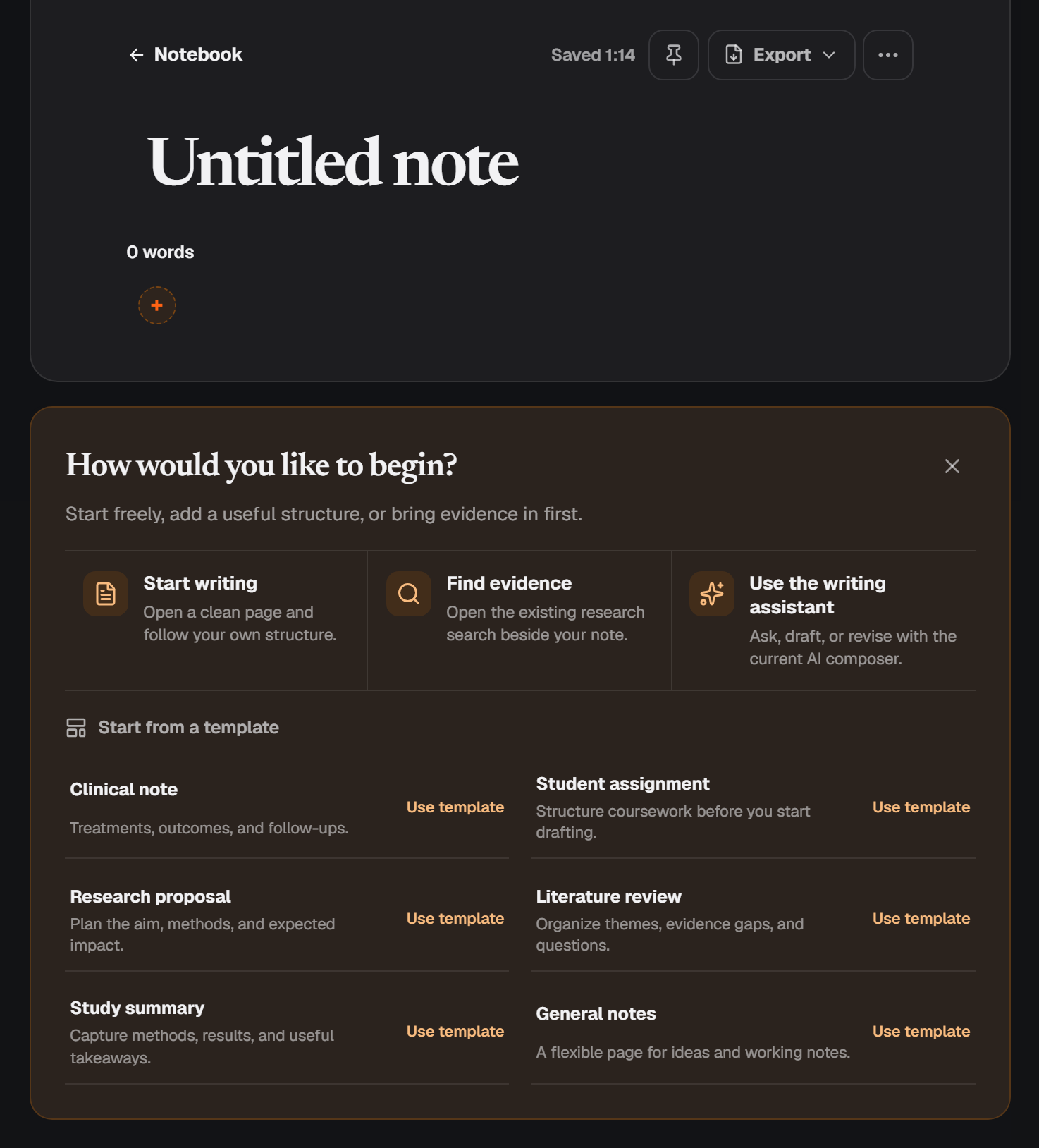
- Start writing
- Closes the panel and puts you on a clean page.
- Find evidence
- Opens a research search beside the note, so you can gather papers first. See Add papers to your note.
- Use the writing assistant
- Takes you to the assistant at the bottom of the note. See Write with the assistant.
Start from a template
A template fills the page with headings and prompts to replace with your own writing. Choose one from the start panel, or from the arrow beside New note in the Notebook.
| Template | What it gives you | Good for |
|---|---|---|
| Clinical note | Treatments, outcomes, and follow-ups. | Documenting a treatment plan and what happened next. |
| Student assignment | Structure coursework before you start drafting. | Planning coursework before you draft it. |
| Research proposal | Plan the aim, methods, and expected impact. | Setting out a study you want to run. |
| Literature review | Organize themes, evidence gaps, and questions. | Grouping what several papers found, and where the gaps are. |
| Study summary | Capture methods, results, and useful takeaways. | Recording one paper for journal club or later reference. |
| General notes | A flexible page for ideas and working notes. | Anything else: ideas, reading notes, lecture notes. |
Templates are listed in the order that suits the role you chose when you joined, but every template is available to everyone. A template only fills an empty note, so it can never overwrite your writing.
There is no save button. The note saves as you type, and the top of the page shows when it last saved.
Write and format
Type straight onto the page. Two keys do most of the formatting and citing for you:
- /
- Opens the insert menu: Heading 2 and Heading 3, Bullet list, Numbered list and Task list, Table, Callout, Toggle, Columns, Quote + citation, Image block and more. Keep typing to filter it.
- @
- Cites one of the note's papers where your cursor is. Keep typing part of its title to find it.
Select any text to show a small toolbar for bold, italic, underline, highlight, headings, lists and quotes. Its Ask AI button sends the passage to the assistant; see Work on a passage.
Under the title you can add tags to group related notes, and the pin at the top of the page keeps a note at the top of your Notebook. On a wide screen with no side panel open, drag either edge of the page to set a line length you find comfortable to read.
Add papers to your note
The papers you add to a note are its sources. The assistant, the @ citation menu and the reference list all work from them, so adding a few is usually the first thing to do.
- Select Search at the bottom of the note, or Find evidence in the start panel. A search panel opens beside your writing.
- Type a question or a few keywords and press Enter. In an empty note, the box starts with the note's title, which is often a good first search.
- Select Add to note in the row under each paper you want. It changes to Added, and the paper joins the note's sources.
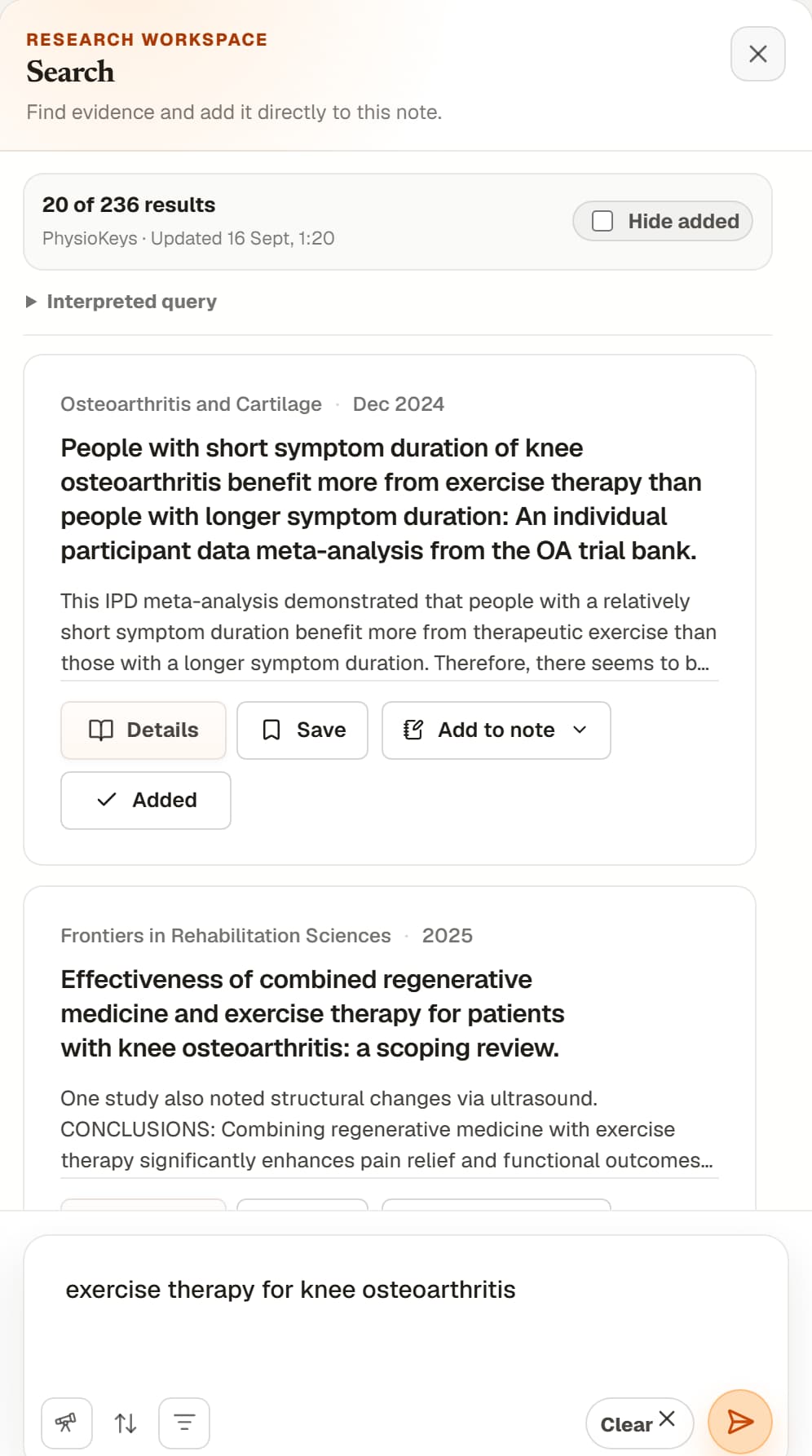
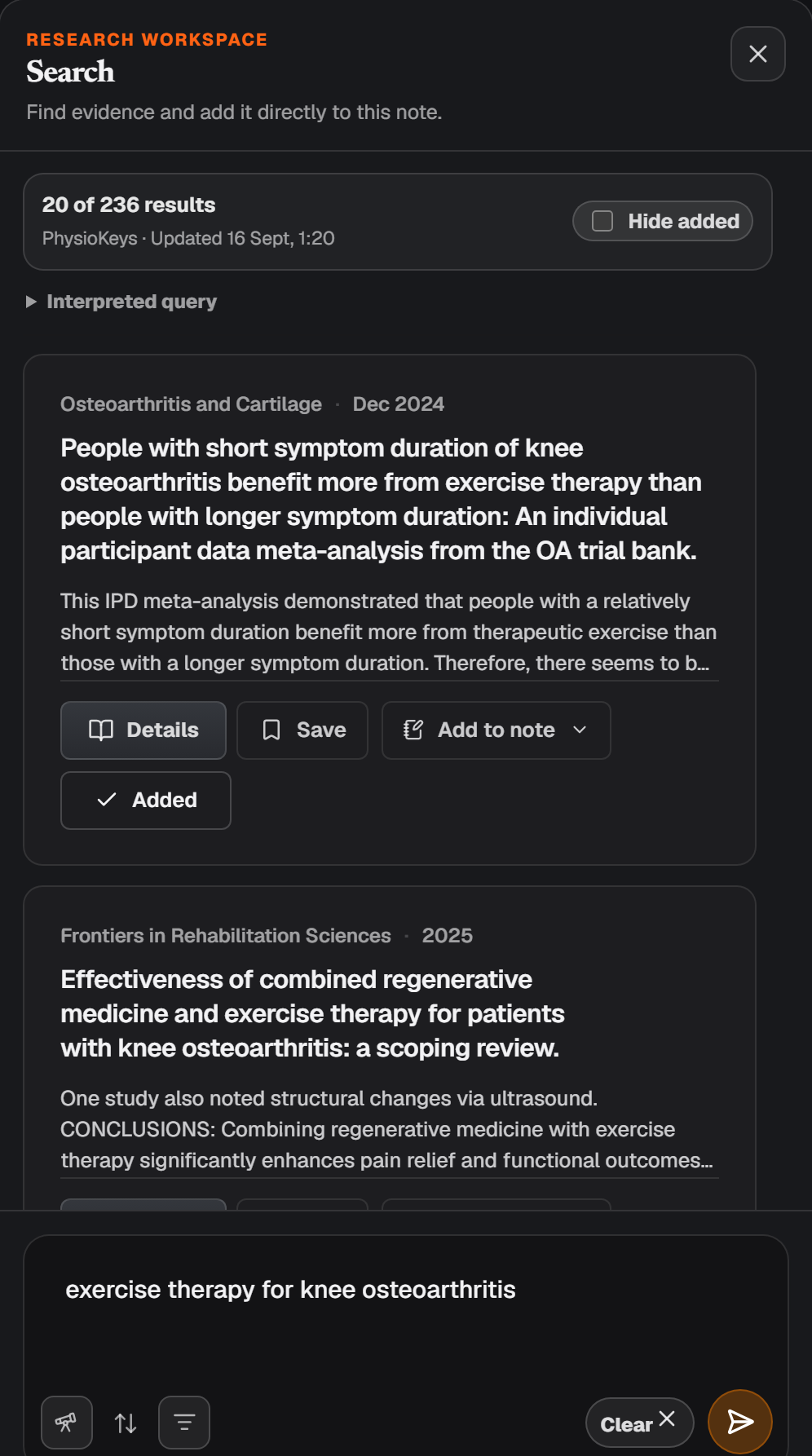
Each result also keeps its usual Add to note menu, with an arrow. That one files the paper into a different note of your choice; the button in the row below adds it to this one.
Tick Hide added to see only the papers you have not added yet. The panel searches the same library as Search, so you can open a result's details and read it before deciding.
Add papers from anywhere in PhysioKeys
- From Search: select Add to note on any result, then choose a note or name a new one.
- From Saved Articles: select Add to note on a paper you saved earlier.
- From Research Chat: Save to note under a reply adds the reply itself, with its citations still linked and its tables still editable. See the Chat guide.
Cite as you write
Select Sources at the bottom of the note to see every paper linked to it. Each paper has three actions, and you can drag papers to reorder the list:
- Cite
- Inserts the paper's citation where your cursor is.
- Pin
- Keeps the paper at the top of the list. When a note has many papers, the assistant reads pinned papers first, so pin the ones that matter most.
- Remove
- Takes the paper out of the note.
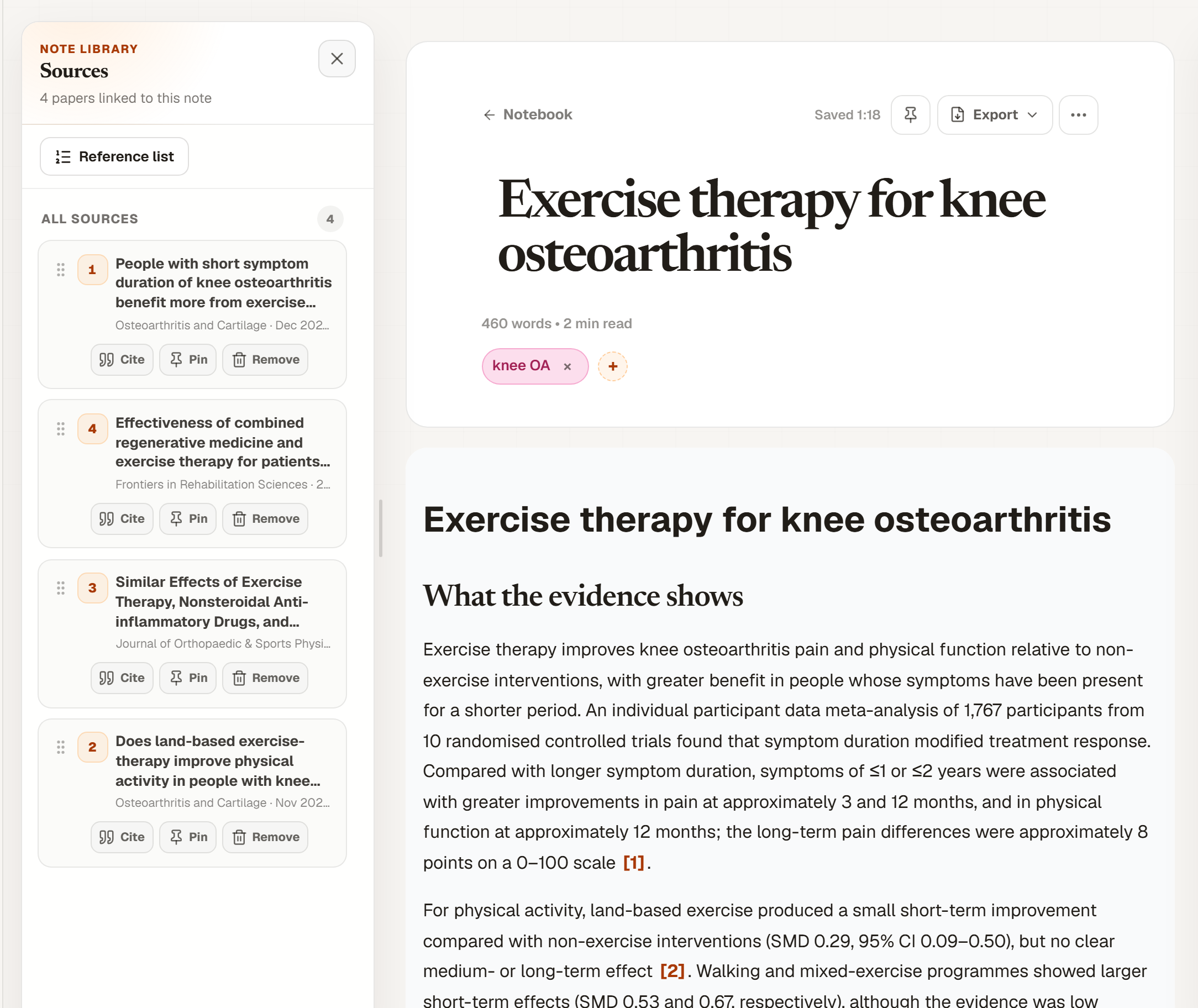
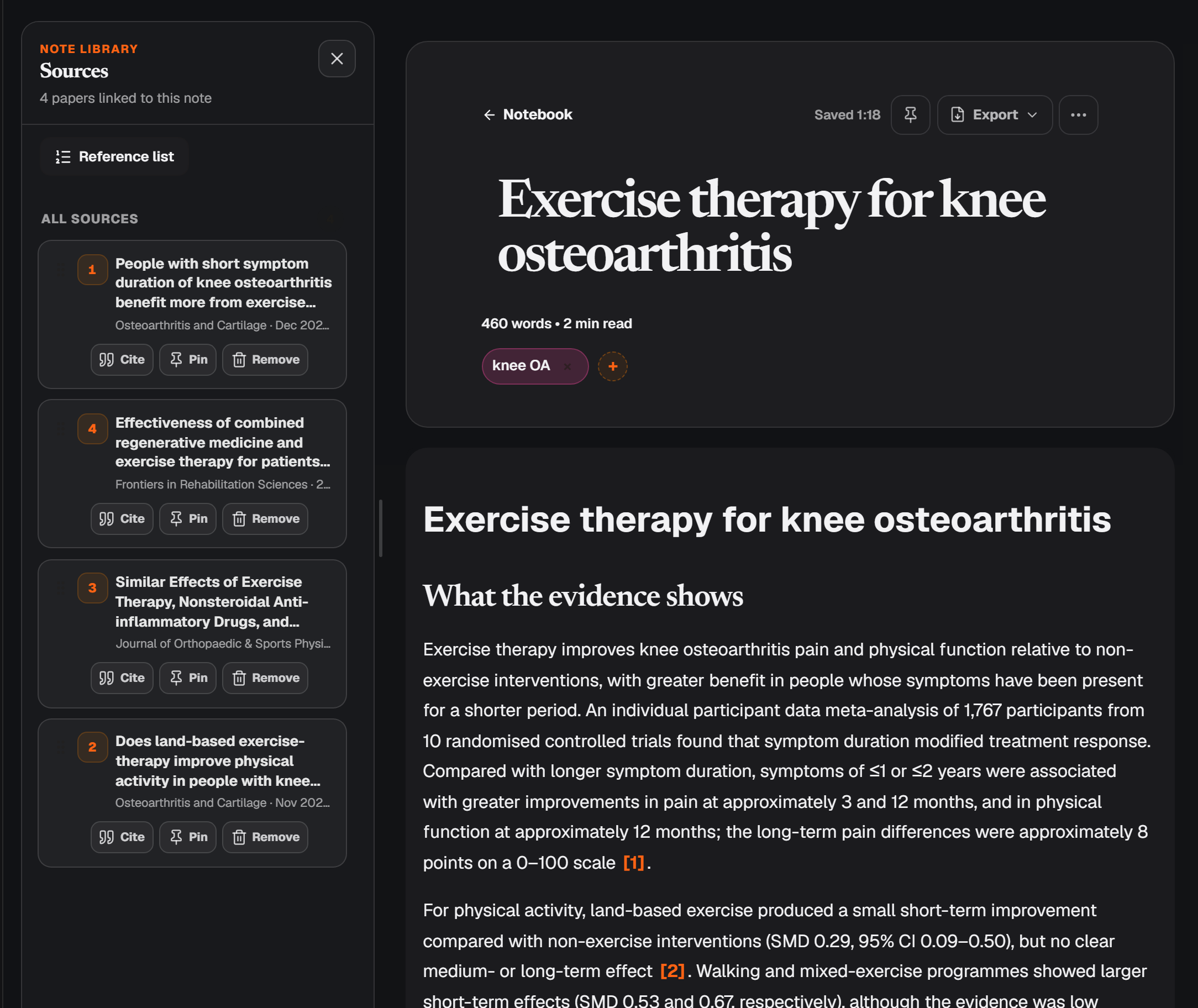
Citations are numbered in the order they first appear in your writing, and a References section below the note lists every paper you cited, in that order. Move a paragraph or cite a new paper earlier and the numbers and the references renumber themselves. Papers you added but have not cited stay in Sources and out of the references.
Write with the assistant
The box at the bottom of every note is a writing assistant that works from the note's papers. It needs at least one, and asks you to add a source first if there are none. It cites the papers it uses, and when they do not support what you asked for, it says so rather than filling the gap from general knowledge.
Type a request and select send. The first control under the box sets how the request is handled:
- Auto
- Reads your request and picks for you. A request that starts like an instruction, such as “Draft…”, “Add…” or “Tighten…”, is written for the note; a question is answered in the panel. When it can’t tell, it answers, so your note never changes by surprise.
- Ask
- Answers in the Conversation panel, with citations to the note’s papers. Nothing in the note changes unless you choose Insert into note.
- Write
- Writes or edits text for the note. The result arrives as a draft for you to insert, use in place of your selected text, or discard.
Requests that work well:
What do these trials say about exercise dosage?
Add a paragraph on adverse events after the results section.
Turn the key findings into a table with a column for each study.
Tighten this paragraph and keep its citations.
Nothing changes until you choose
Anything written for the note arrives first as a draft in the Conversation panel, with its word count. Read it, then choose Insert at cursor, Replace selection when you had text selected, or Discard. Citations in an inserted draft point to the right papers and join the note's numbering. An answer to a question has Insert into note under it.
If a draft could not be checked against its papers, the draft says so, so you know to read it closely before using it.
Work on a passage
Select the text you want to change and choose Ask AI in the toolbar that appears. The assistant shows Using selected text, and your next request applies to that passage, such as shorten this
or add citations to these claims
.
Thinking depth and sources
- Quick
- Short, fast answers with the key points only.
- Standard
- Balanced detail for everyday clinical questions.
- Deep
- Longer answers with dosage, comparators, and conflicts. Pro only.
- All note sources
- Every paper in the note, with pinned papers read first when a note has many.
- Only last-cited sources
- Only the papers the assistant cited in its last reply. Useful for following up on one answer without pulling in the rest.
Neither choice changes what a request costs.
Draft a section
For a longer piece, select What are you writing? beside the assistant's controls and set three things:
- Type
- Essay: An argued piece of writing, such as coursework or a discussion. Sections: Introduction, Background, Main analysis, Counterpoints, Conclusion.
- Critical appraisal: A structured look at how far a study’s methods and results can be trusted and applied. Sections: Study summary, Internal validity, External validity, Results and precision, Bottom line for practice.
- Evidence note: A short, practical summary of what the evidence says and how strong it is. Sections: What the evidence shows, How strong it is, What it means in practice.
- Section
- The whole piece, or one section of it. Drafting a section at a time lets you read and steer before the next. The assistant knows the full outline and reads what is already in your note, so a new section follows on from what you wrote before it.
- Length
- How long the draft should be, from the table below.
| Length | Words | Plans |
|---|---|---|
| Short | 250–400 | All plans |
| Standard | 500–800 | All plans |
| Long | 900–1,400 | All plans |
| Full draft | 1,500–2,200 | Pro only |
Then select Draft it. A Full draft is written one section at a time, so choose a section for it. The draft arrives in the Conversation panel like any other, for you to insert or discard.
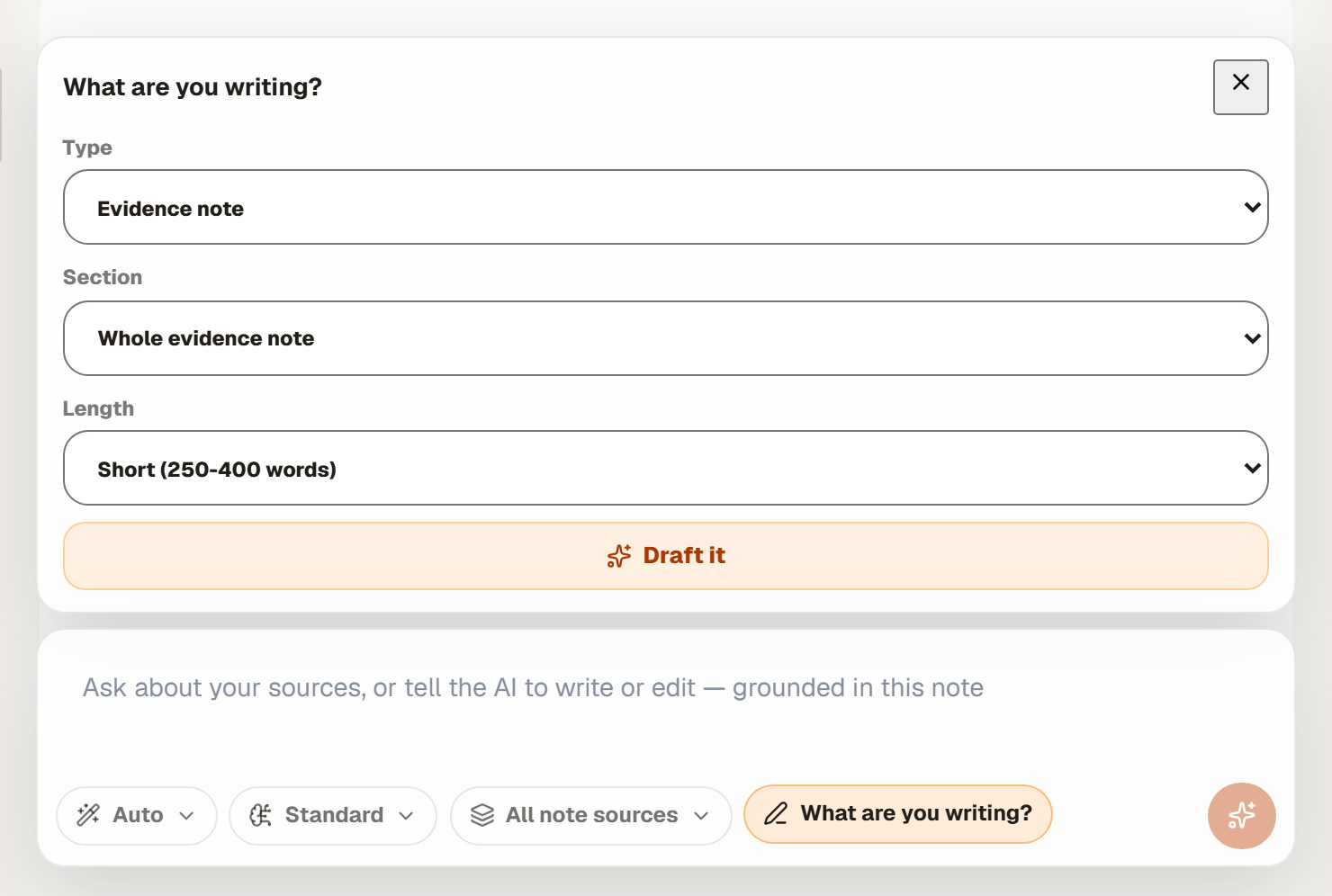
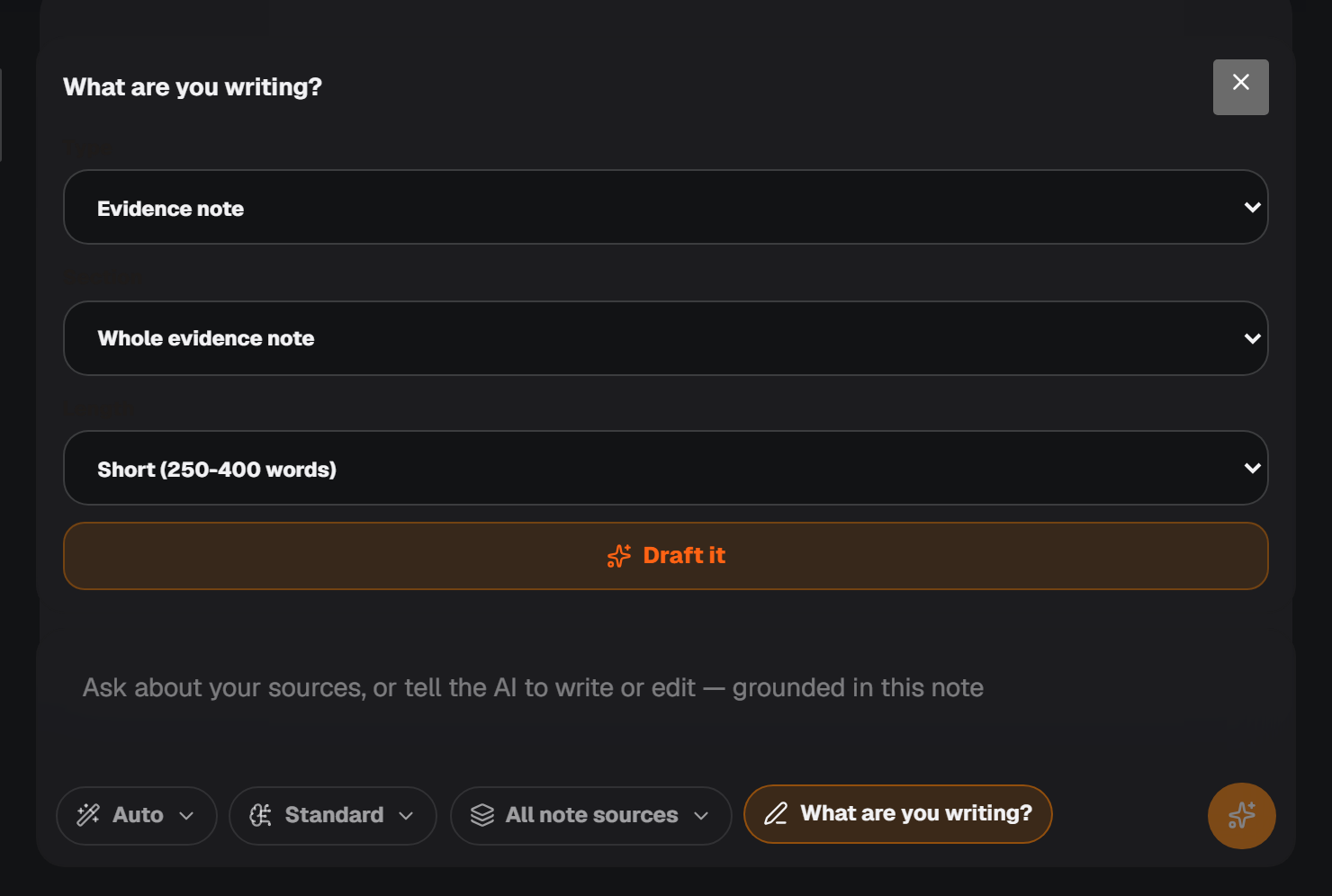
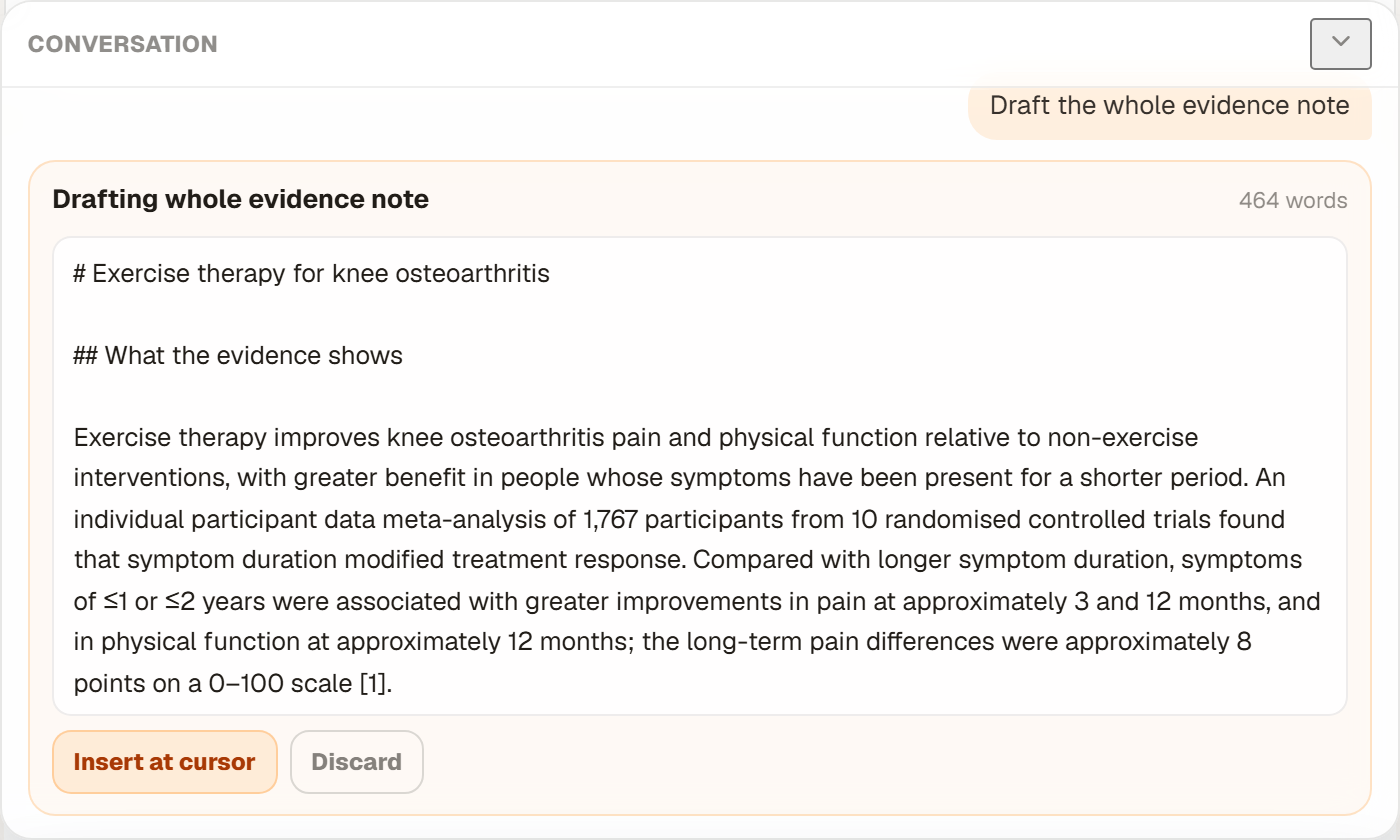
Drafts are written for the reader you set as Default answer style in Account: Clinician, Student or Researcher.
Build a reference list
- Select Sources at the bottom of the note.
- Select Reference list at the top of the panel.
- Choose a style. PhysioKeys looks up each paper's authors and journal details to fill it in.
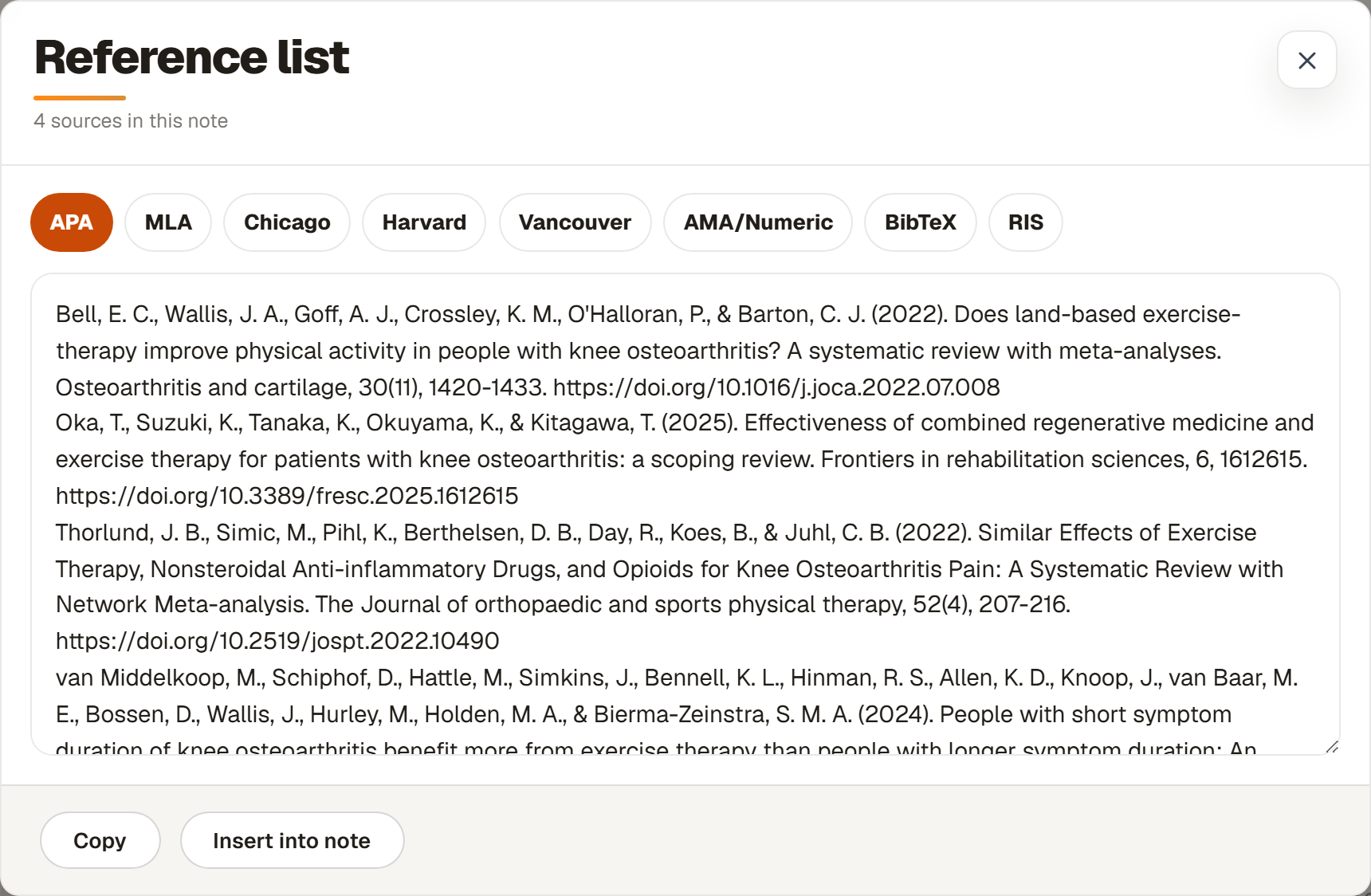
Styles you can read and paste: APA, MLA, Chicago, Harvard, Vancouver and AMA/Numeric.
- Copy
- Copies the formatted list to paste anywhere.
- Insert into note
- Adds the formatted list to the note itself.
- BibTeX RIS
- Formats for reference managers. These download a file to import into Zotero, Mendeley or EndNote instead of text to paste.
Export to Word or PDF
- Select Export at the top of the note.
- Choose Word (.docx) or PDF (.pdf). The file downloads straight away.
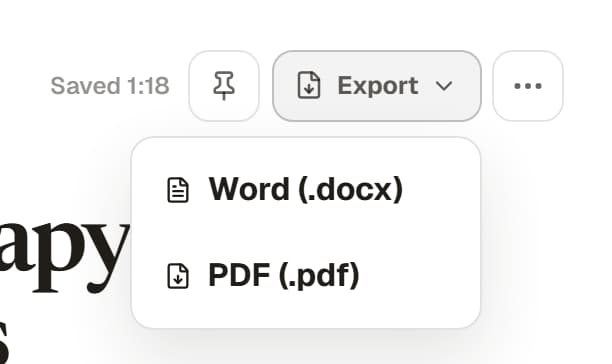
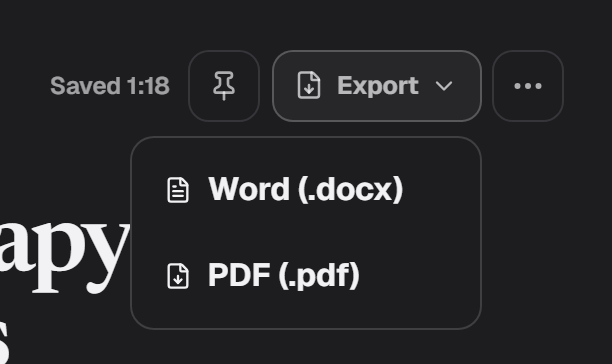
The file keeps your headings, bold and italic text, links, lists, quotes, tables and citation numbers. Choose Word when you still want to adjust the formatting yourself, and PDF when the note is ready to send.
Keep your notebook organised
Notebook lists every note you have. From the bar above the list you can:
- Search notes by title, tag or status, and switch between List and Cards.
- Filter by status and Sort by when a note was updated or created, or by title.
- Select several notes to change their status or tags, or move them to Trash, all at once.
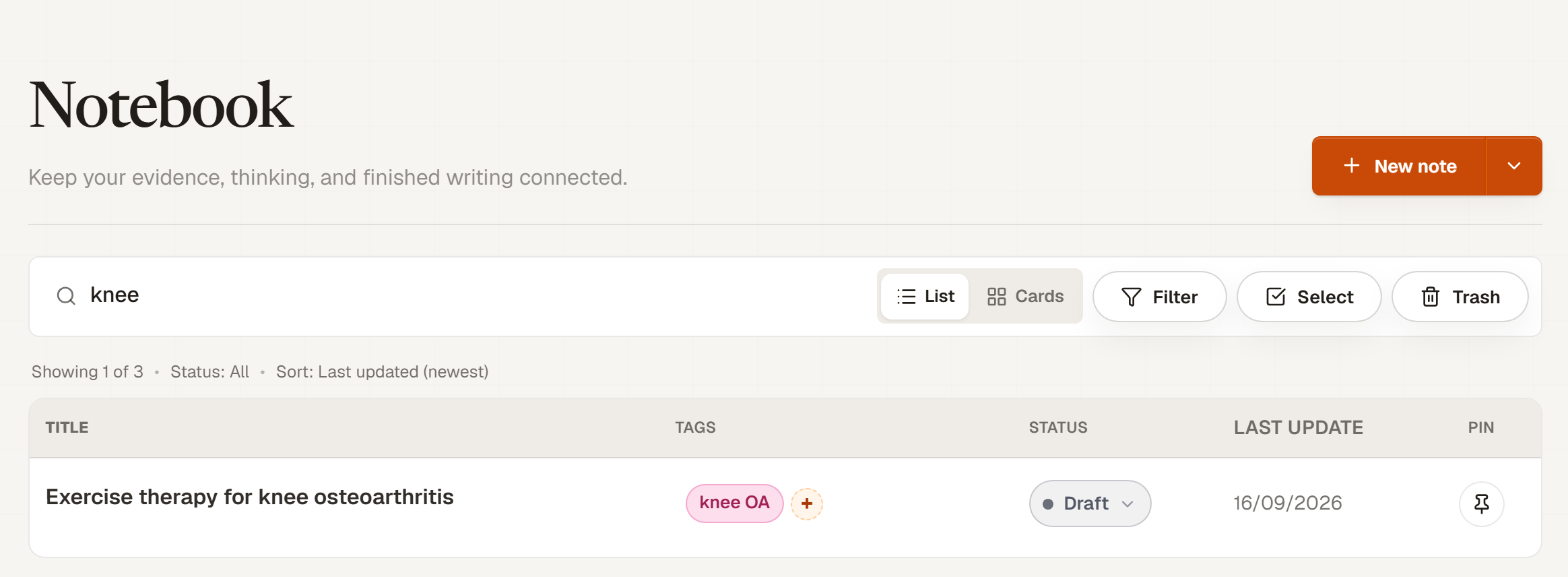
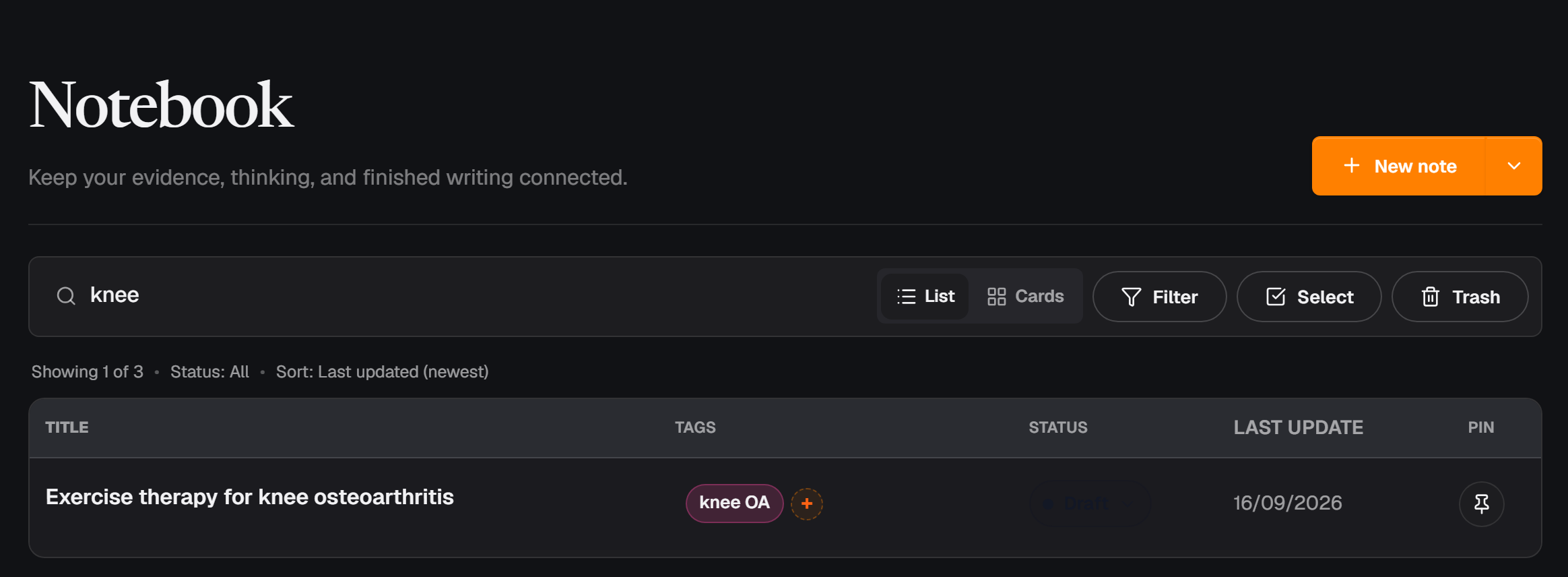
Every note starts as Draft. Move it through Draft, Writing and Done as your work progresses, or add statuses of your own.
Trash
To delete a note, open the three-dot menu at the top of the note and choose Move to trash. Trash keeps it for 30 days, then deletes it permanently. Until then, Restore brings it back as it was, and Delete permanently removes it at once.
What it costs
Writing, adding papers, citing, reference lists and exports are free. Each search you run in the note's search panel uses one search from your plan, the same as in Search. The assistant uses AI credits:
| Request | Credits |
|---|---|
| Ask a question about the note’s papers | 35 |
| Write or edit text in the note | 20 |
| Draft with What are you writing? | 90 |
| Plan | Notes | AI credits |
|---|---|---|
| Free | 3 at a time | 750 in total |
| Student | Unlimited | 7,000 a month |
| Pro | Unlimited | 15,000 a month |
On Free, notes in Trash do not count toward your 3 notes, so moving one there frees a place; restoring it takes the place back. A request that fails before its result reaches you has its credits returned. See Pricing for what each plan costs.