What Search does
Search finds the studies themselves. It returns a ranked list of articles for your question, with no AI-written answer on top, so you read the evidence and decide what matters.
Use Search when you want to see what exists and judge it yourself. Use Chat when you want a written reply built from that evidence.
Run a search
- Open Search and choose the Search Only tab at the top.
- Type a question or a few keywords. Both work: “what's the effect of dry needling on neck pain?” and “shockwave plantar fasciitis RCT” are equally good searches.
- Select Search.
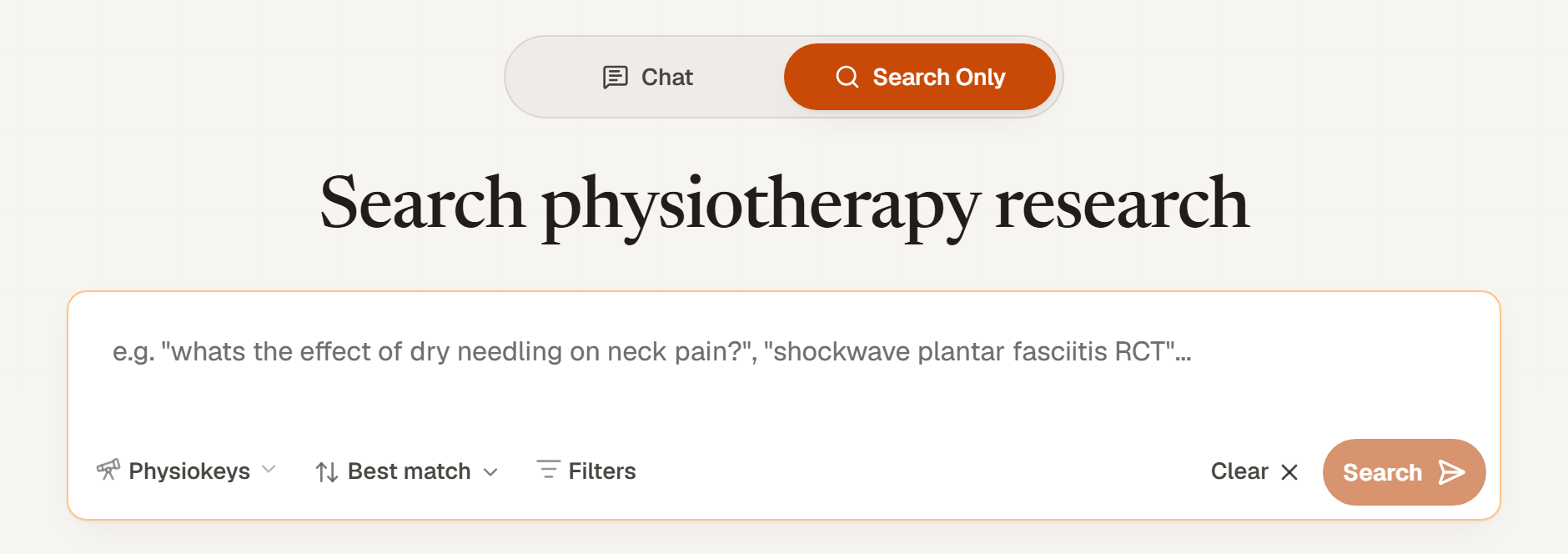
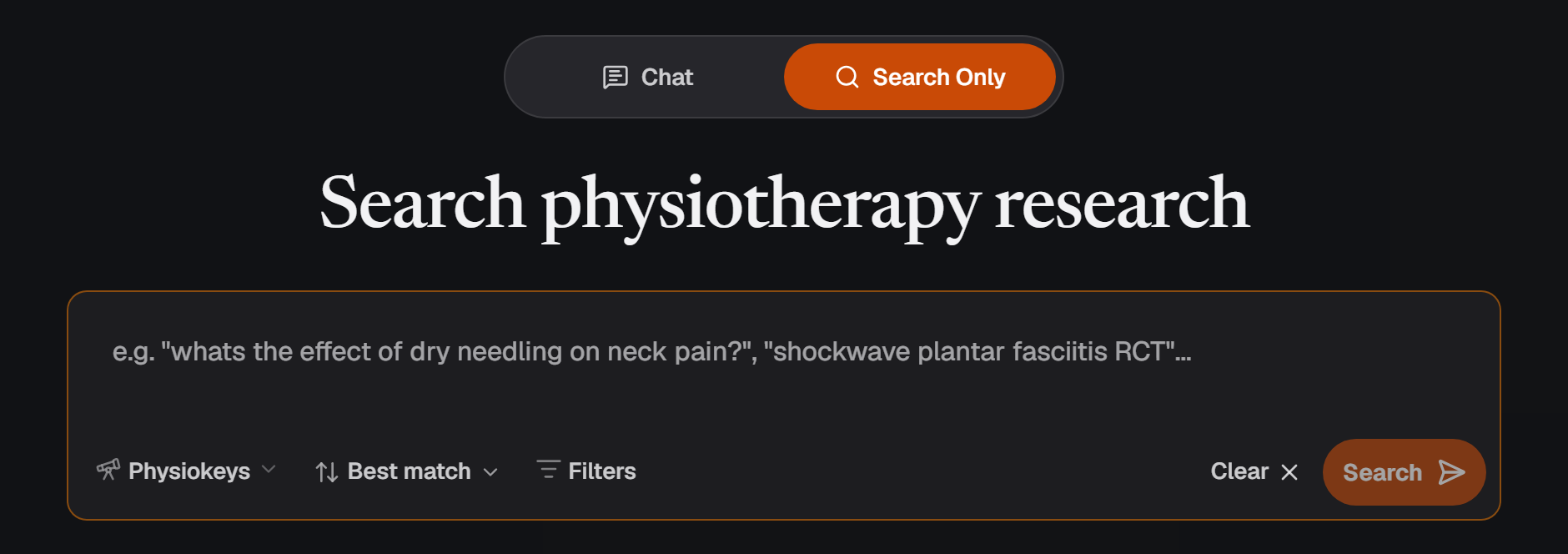
PhysioKeys reads your question before searching it. When it corrects a spelling or reinterprets the wording, the results show Spelling adjusted or Interpreted query; open either to see exactly what was searched.
Signed-out visitors get 3 searches to try it. Sign in to keep searching and to save what you find.
Choose where to search
The source control decides where PhysioKeys looks.
- Physiokeys
- The PhysioKeys library: research from the physiotherapy and rehabilitation journals PhysioKeys indexes, with abstracts and study details ready to read. Start here.
- Expanded
- PubMed, searched with a strategy PhysioKeys builds from your question and limits to physiotherapy and rehabilitation. Use it when you need studies beyond the journals PhysioKeys indexes.
Filter by design, date and journal
Select Filters to narrow the results. The panel has four groups.
- Evidence: study design. Choose any of systematic reviews, meta-analyses, randomised controlled trials, clinical trials, observational studies, scoping reviews, narrative reviews or practice guidelines.
- Recency: Last 5 years, Last 3 years, Last 2 years, or exact years, or an exact date range.
- Sources: open access only, or the specific journals you choose.
- Journal impact: a signal about the journal. It says nothing about the quality of an individual study.
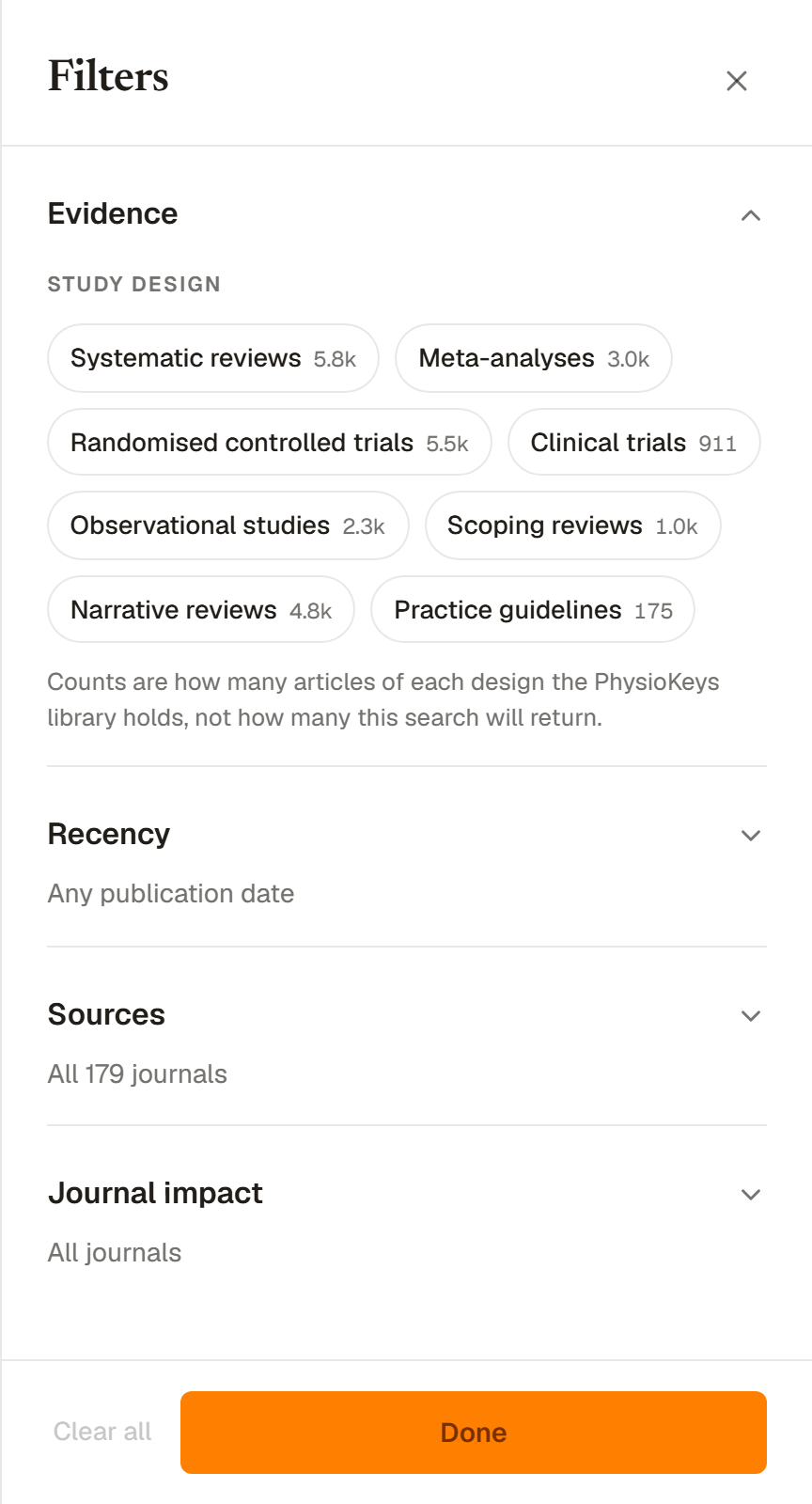
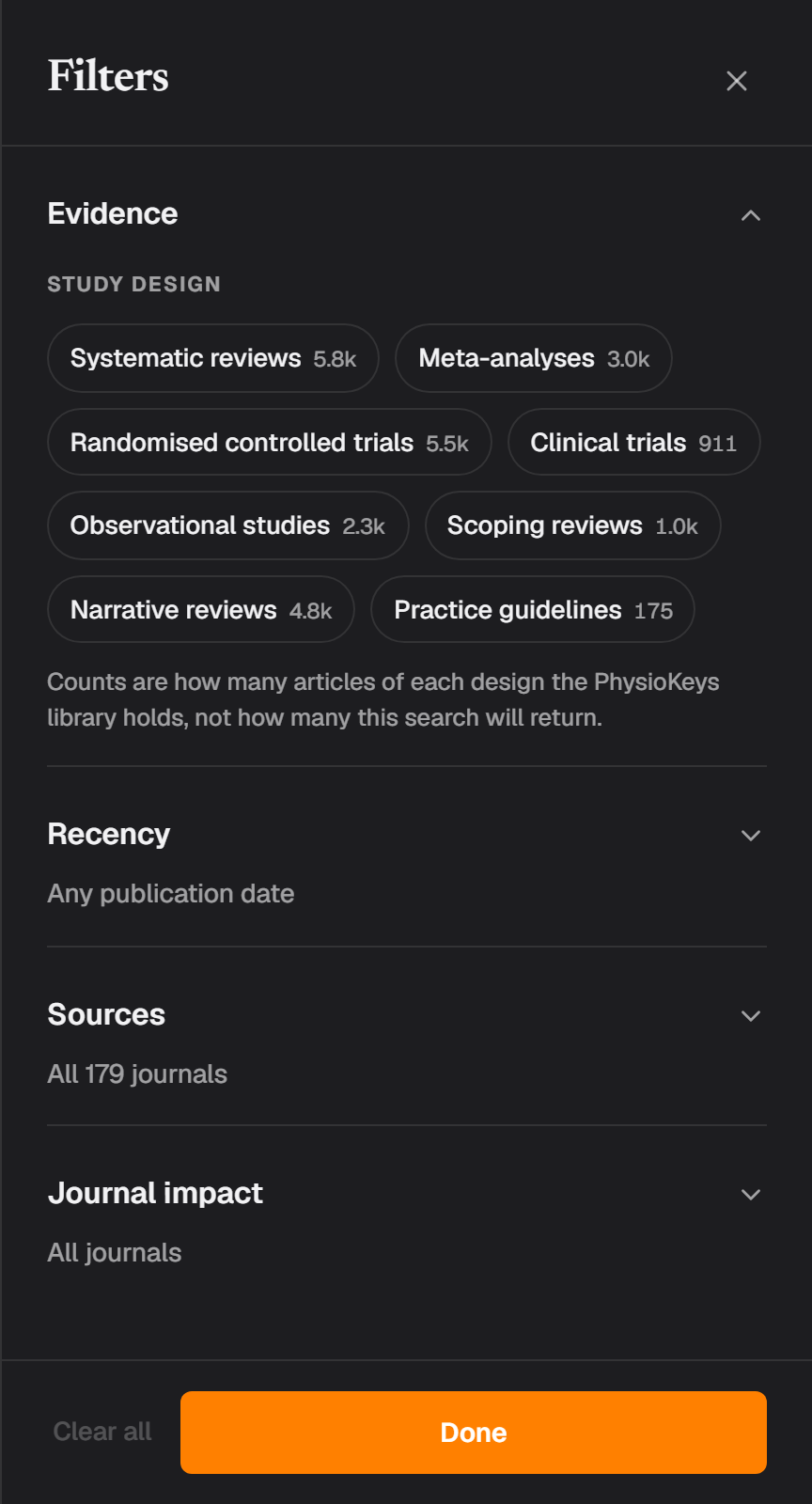
Once you have results, select Show results to search again with your filters. Before your first search the button reads Done, and your choices apply when you search. Chat uses the same filters, so a scope you set here carries over when you switch tabs.
Sort the results
Results start sorted by Best match, which ranks articles by how well they answer your question. You can also sort by Newest first or Oldest first.
Read the results
Each result shows its journal and date, the title and the start of the abstract.
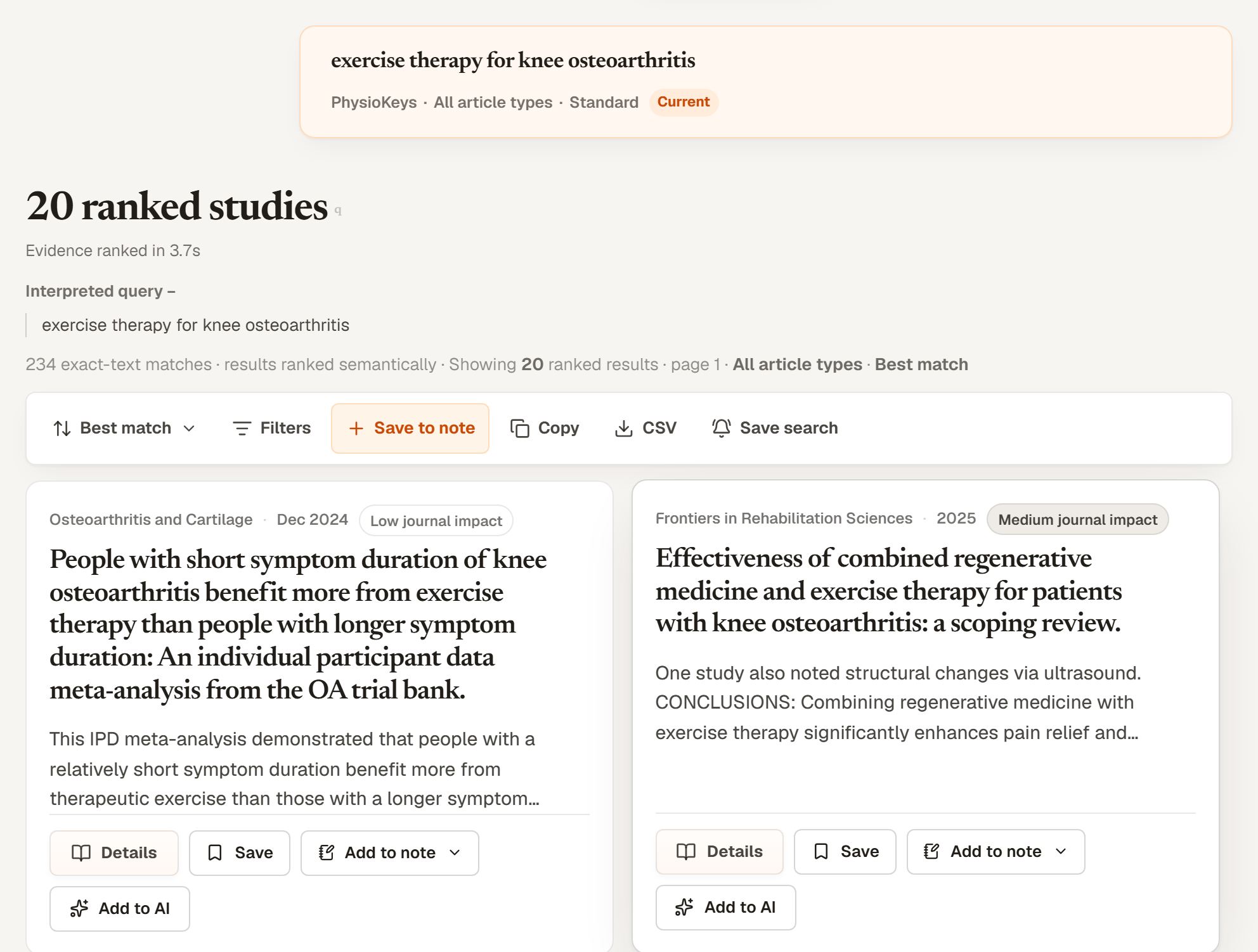
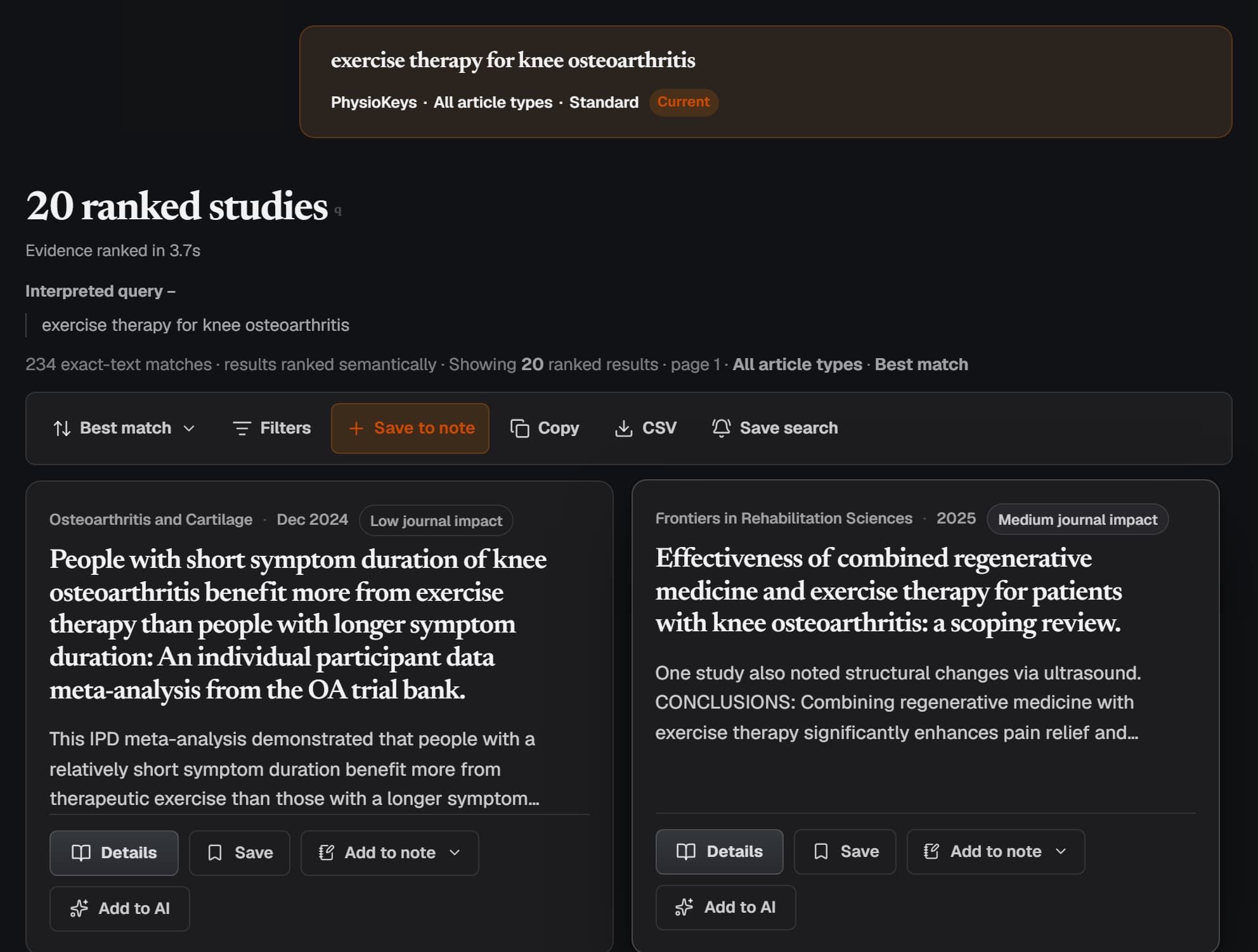
- Details
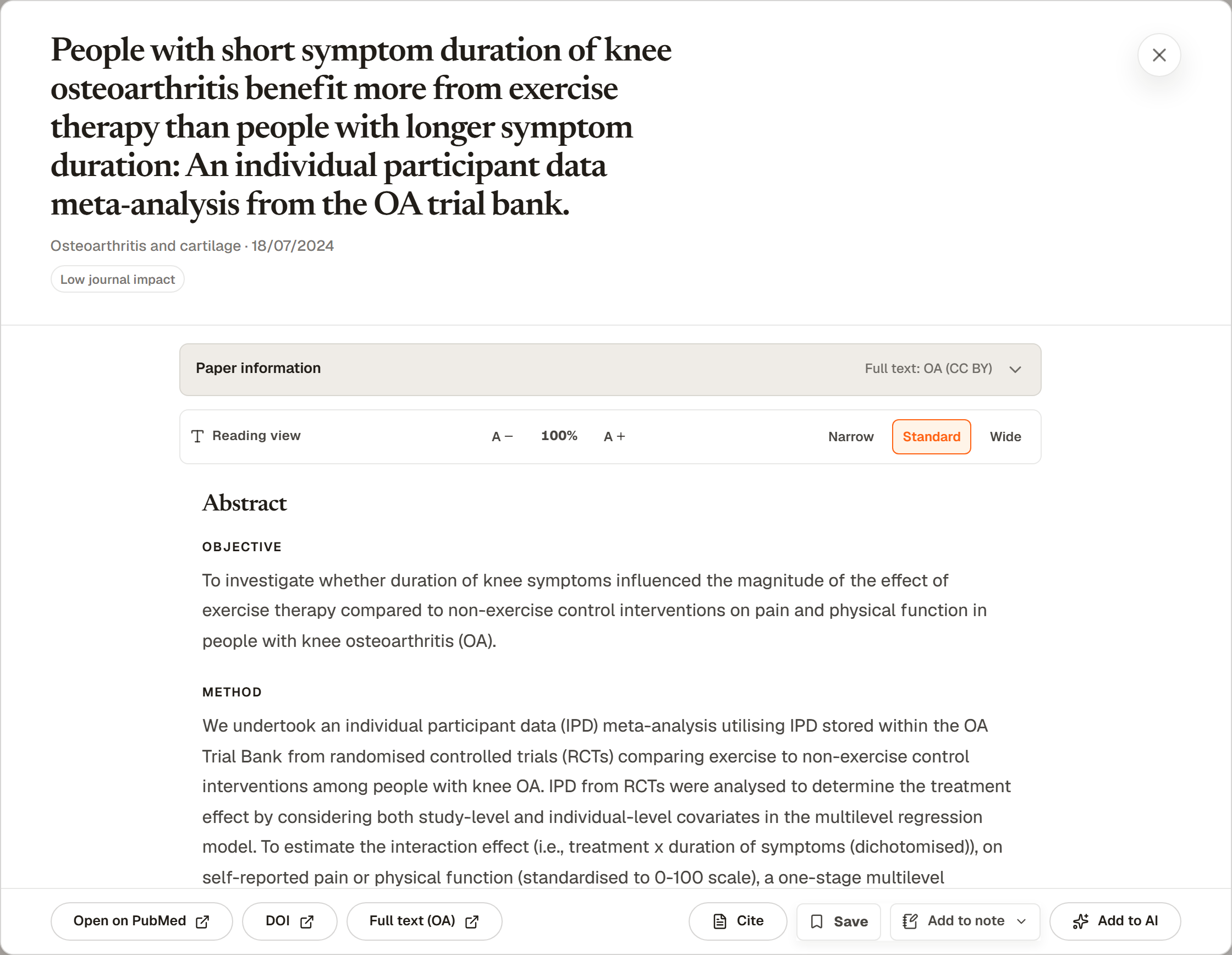
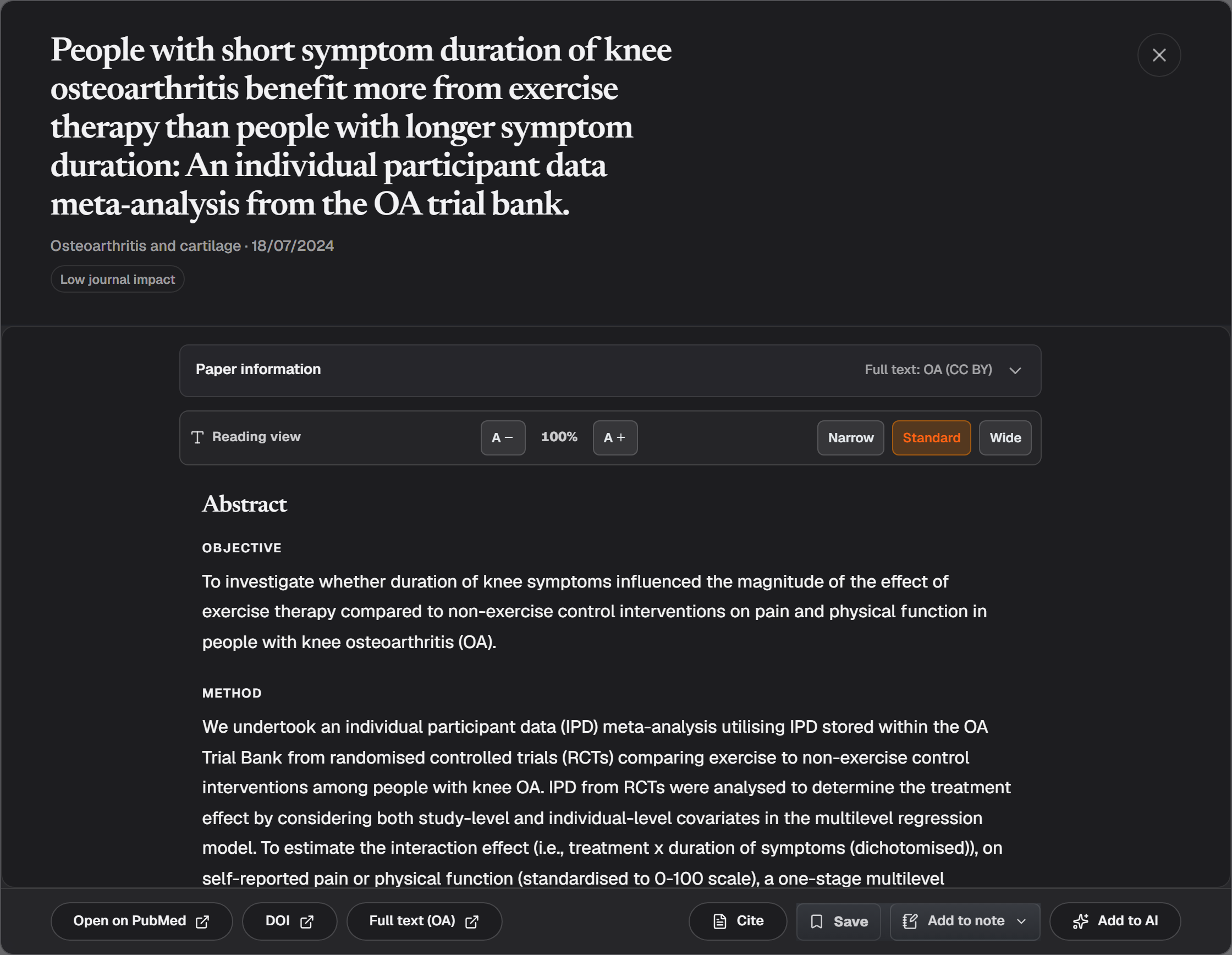
- Opens the article to read: paper information, the full abstract, and the full text when its licence allows PhysioKeys to show it.
- Save
- Keeps the article in Saved Articles.
- Add to note
- Adds the article to a note in your Notebook as a source.
- Add to AI
- Adds the article to the AI assistant, so you can ask questions about it.
Keep what you find
The toolbar above the results works on everything you can see.
- Save to note
- Adds the visible results to a new or existing note.
- Copy
- Copies the visible results as a list you can paste.
- CSV
- Downloads the visible results as a spreadsheet file.
- Save search
- Keeps the search, with its source, filters and sort, in Saved Searches so you can run it again. It can also email you when new matching studies arrive — see Get an email when new research appears.
Refine with a follow-up
The box under your results takes a follow-up search, so you can refine without starting over. Earlier searches stay above it as short summaries you can reopen.
Signed in, your searches are kept in History.
What it costs
Each search you run, follow-ups included, uses one search from your plan's search allowance. Reading, saving, copying and downloading results do not. Searches are counted separately from AI credits, so searching never uses up Chat.
| Plan | Searches | Saved articles |
|---|---|---|
| Free | 300 in total | 30 |
| Student | 750 a month | Unlimited |
| Pro | 1,500 a month | Unlimited |
See Pricing for what each plan costs.